01
Focused on Structural Members
Primarily checks linear structural members such as columns, beams, and braces, without mixing unrelated model information into the results.
Compare section, length, horizontal position, elevation, and angle differences in columns, beams, and braces—without being buried in unrelated BIM changes.
Useful for model version comparison, BIM vs. analysis model checks, architecture–structure coordination, and design-to-fabrication review. Whenever you need to know whether structural members in two IFC files are truly the same.
Data security note: uploaded IFC files and comparison results are processed temporarily and are generally removed within 24 hours.
General model comparison can produce a long list of property changes. StructMatch focuses on whether the geometry of beams, columns, and braces actually changed.
Primarily checks linear structural members such as columns, beams, and braces, without mixing unrelated model information into the results.
Changes are separated into section, length, horizontal position, elevation, angle, and shape so you can see exactly what changed.
Names, tags, and nonessential parameters are not treated as the main result, keeping the review focused and readable.
They can be different versions of the same model or models created by different teams or software. The goal is the same: check whether structural member geometry is consistent.
Model comparison narrowed down to the structural member geometry engineers most often need to verify.
After corresponding members are matched, StructMatch checks their main structural geometry differences item by item.
The models do not need to come from the same source. If both IFC files contain the structural members you want to verify, they can be compared.
StructMatch is currently positioned as a structural member comparison tool, prioritizing common beams, columns, and braces rather than every object type in a complete BIM model.
IFC2x3 or later is recommended, including IFC2x3, IFC4, and IFC4x3. Geometry representation can still vary between software and may affect parsing results.
A simple, traceable path from two IFC files to structural member difference results.
Start with the short video to understand the basic workflow, then watch the full tutorial for detailed operation steps.
Things you may want to know before using the tool for the first time.
StructMatch is an IFC model comparison tool focused on structural member geometry.
You can load two IFC files, and the system will try to find corresponding columns, beams, and braces, then check whether their section, length, horizontal position, elevation, angle, or shape is different.
It is not intended to list every changed property or parameter in the model. The goal is to narrow the result down to one question: did the structural member geometry change?
A complete BIM model can contain a large number of properties, names, tags, classifications, and nonstructural objects. General version comparison can easily generate many changes that are technically real but not relevant to the check you are trying to perform.
StructMatch deliberately narrows the scope to structural members such as beams, columns, and braces, then separates the differences into section, length, horizontal position, elevation, angle, and shape.
This makes it easier during coordination or pre-issue review to answer a simple question: are the structural members in these two models geometrically consistent?
If you have two IFC files and what you actually care about is whether beams, columns, and braces are geometrically consistent, StructMatch is a good fit.
The system mainly reads two core pieces of information for each member: section and axis.
The section represents member size, such as RECT-500x800, BOX-300x300x12, or H-400x200x8x13.
The axis can be understood as the centerline along the member length. After extracting it, the system uses the axis to describe position, angle, shape, and length, together with other geometry information to find likely corresponding members. Once pairing is complete, section and geometry differences are checked item by item.
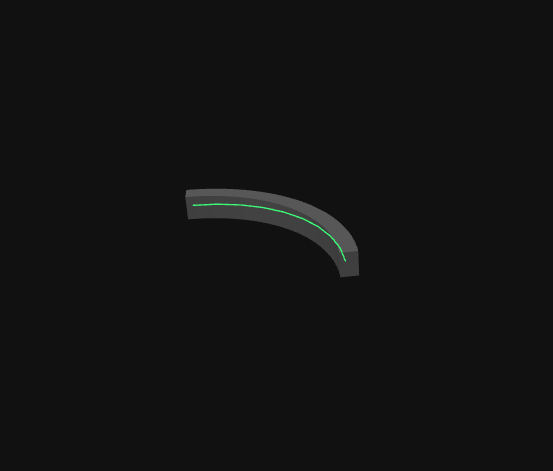
During pairing, the system uses each member in Model A as a reference and searches nearby for possible corresponding members in Model B.
If the two model coordinate systems are not aligned, corresponding beams or columns may be too far apart, causing the system to miss the correct pairing.
Therefore, when the two model origins or coordinates differ significantly, it is recommended to align the models first. The system can then search for corresponding members within a reasonable range and proceed with comparison.
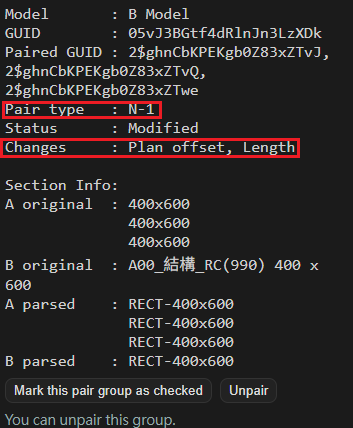
“Pairing” determines which member or members in Model B correspond to a member in Model A. Common pairing situations include:
“Comparison” checks whether paired members have differences, such as position, angle, section, shape, or length differences.
Simply put, pairing finds “which members belong together,” while comparison checks “whether there are differences within the pair.”
Ideally, the system can directly read each member’s section size from the IFC data.
In real projects, some members may be affected by joins, cuts, end trimming, conversion, or software-specific IFC export methods, making it difficult to infer the original section from geometry alone.
For example, a rectangular beam may be cut by columns, walls, or other elements at its ends, so its geometric shape is no longer a clean rectangle. In this case, geometry alone may not be enough to identify the correct section.
Section naming rules are used when geometry-based section detection is insufficient. The member name can then be used to specify the section size.
For example:
Automatic section naming detection: the system first attempts to find patterns in existing member names and apply possible section naming rules. Users can confirm, edit, or add rules to match project or company naming conventions.
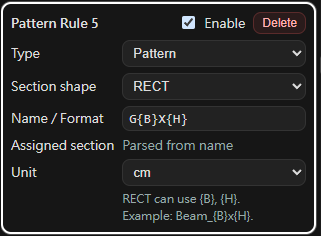
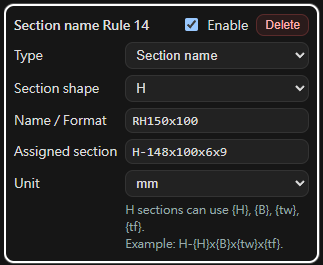
If the automatic result is not as expected, you can correct it based on the type of issue.
These features help the tool adapt to different company modeling habits, IFC export results from different software, and project-specific checking requirements.
Yes.
Users can adjust comparison items and certain tolerances based on project needs. For example, you can choose whether to compare position, angle, shape, section, or length, and adjust thresholds for position offset, angle difference, and length difference.
This is useful at different stages of model checking. During early coordination, you may only care about the section and position of major beams and columns. Before drawing issue or model delivery, you may use stricter tolerances for horizontal position, elevation, angle, and length.
The system temporarily processes uploaded IFC files and comparison results in order to complete the model comparison workflow.
The system regularly clears uploaded data and generated results. Temporary data is generally removed within 24 hours.
If you choose to provide IFC files through the feedback form and describe the issue you encountered, it will greatly help improve section parsing, pairing accuracy, and compatibility with IFC exports from different software.
I am the developer of StructMatch and a practicing structural engineer.
In my own work, I often do not need to know every BIM parameter that changed. I simply want to confirm whether a beam or column section changed, whether a member moved, whether its elevation is consistent, or whether it was lengthened, shortened, added, or removed.
StructMatch therefore keeps the scope intentionally small and focuses on geometry comparison for structural members such as columns, beams, and braces. The two models can be different versions of the same project or come from different teams or software; as long as they can be exported to IFC, StructMatch uses the same workflow to turn them into visual structural difference results.
StructMatch is currently in Public Beta. If you have a real structural model comparison workflow, or encounter a case that cannot be parsed or paired correctly, feedback is very welcome.
This tool is an auxiliary IFC model difference checking tool. Results are intended for design review and coordination reference only and should still be finally confirmed by qualified professionals.
The tool currently focuses on common structural members such as beams, columns, and braces in IFC2x3 or later. IFC exports may differ between software, and certain special geometry representations, Brep, Boolean clipping, or non-standard export contents may not be fully parsed.
Large models may require longer processing time. For best results, upload simplified IFC models that include only the beams, columns, braces, or other structural members you want to compare.
If you encounter any issues, have feedback, or are willing to share IFC test cases to help improve the tool, please contact: structmatch@gmail.com